
























 DE
DE  CH
CH  AT
AT 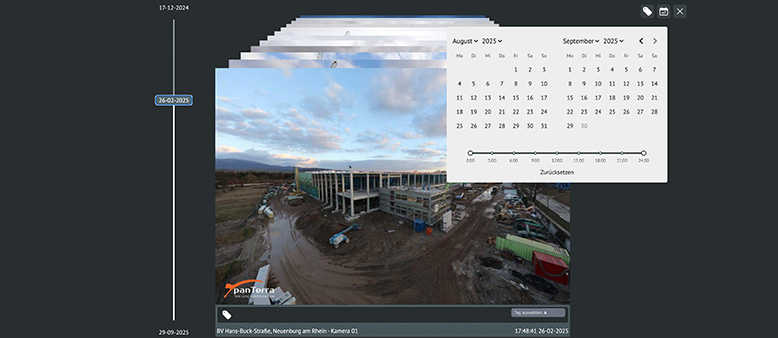
- TIME FACTORY
- Online Portal
panTerra Online Portal – Image Archive and Search Function
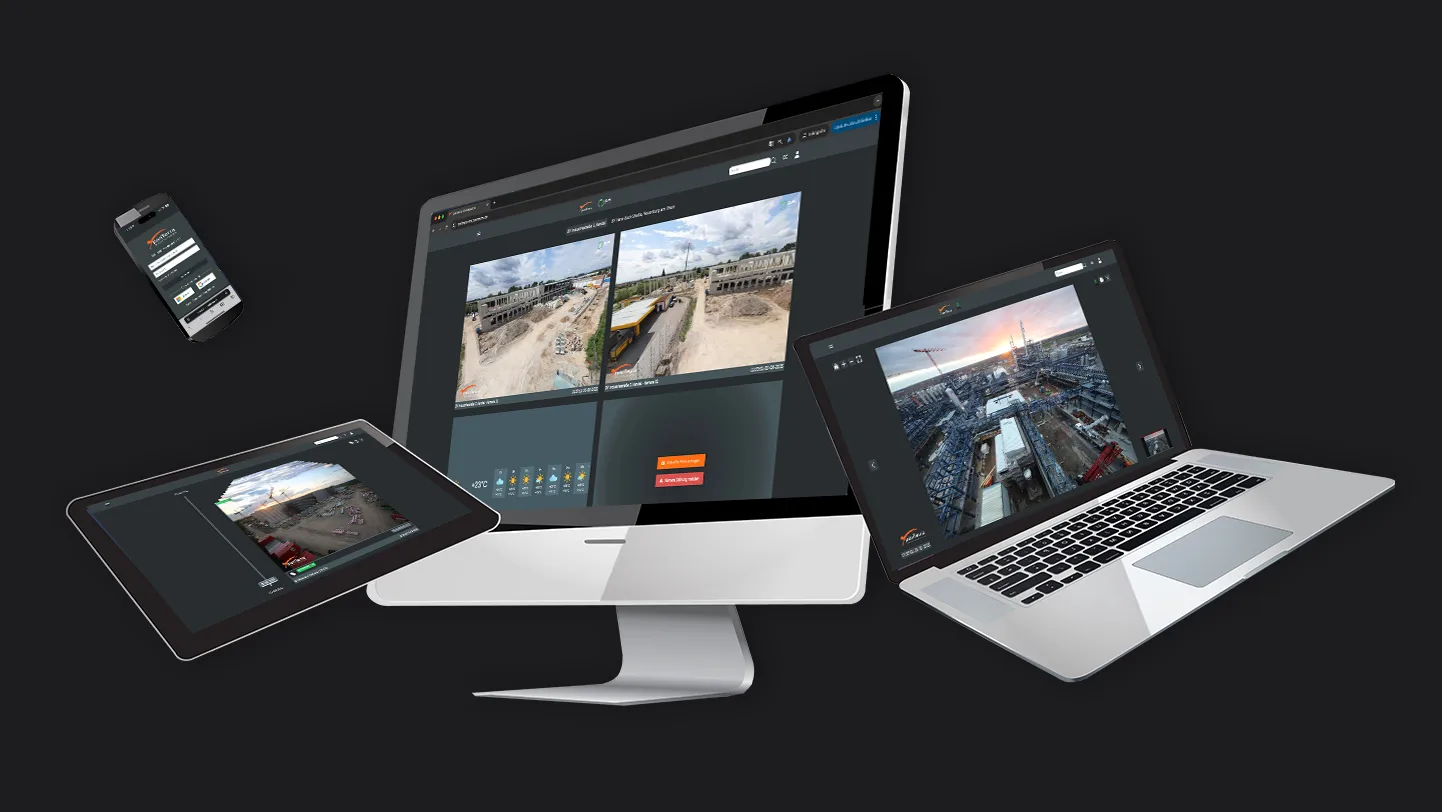
Intuitive and fast. Browse your image archive using the powerful search function and download the files you need in seconds. Depending on your permissions, you’ll see individual cameras or multiple projects in the dashboard.
Table of Contents
Step-by-Step Guide - Image Archive and Search Function
1. Open the stack view for the desired camera. To expand the menu, hover your mouse over the image without clicking A.
- Tip: You can also open the stack view by double-clicking the camera tile.
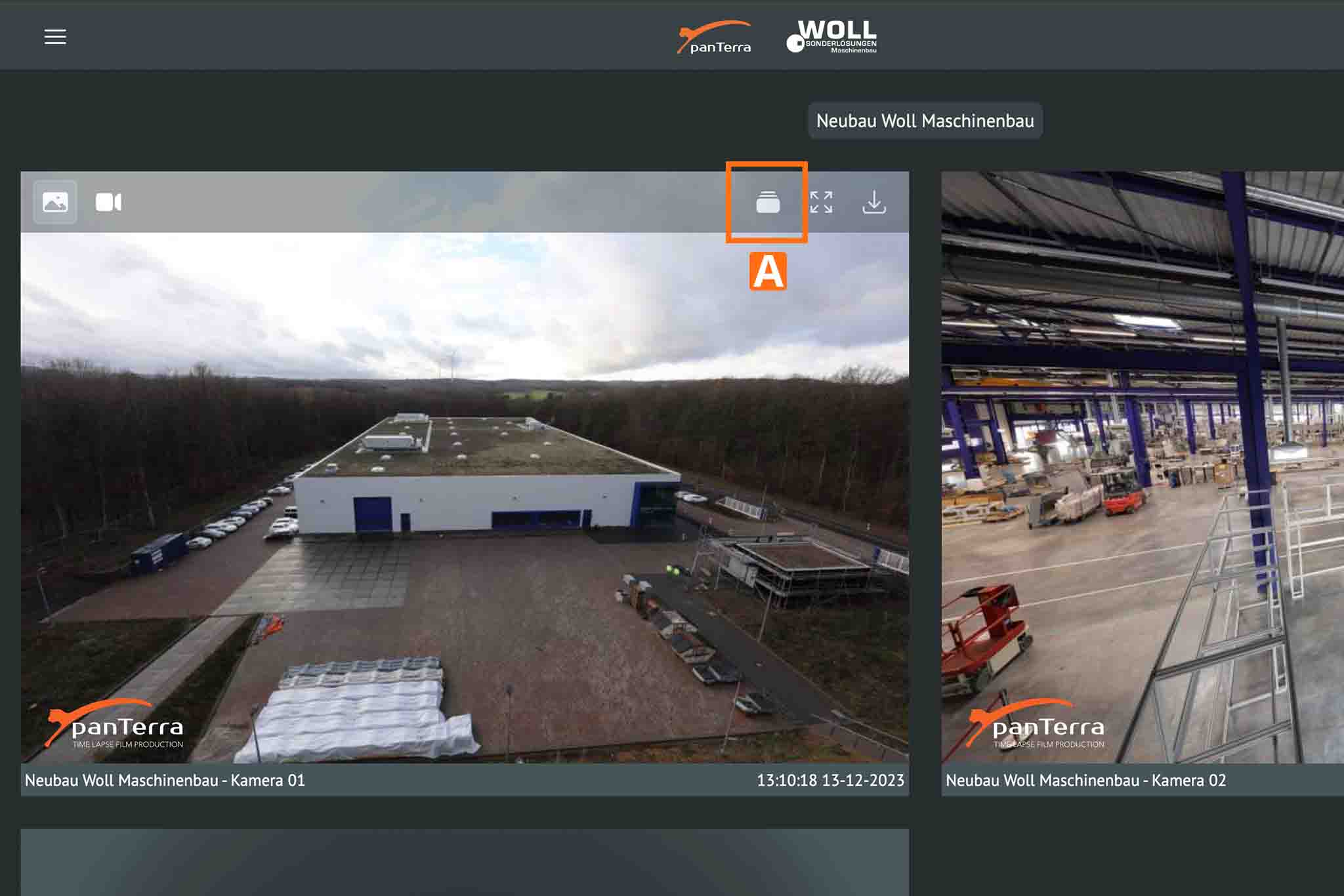
Open the thumbnail view (image library) for the desired camera
2. To navigate through the project, you can scroll with the mouse or click to move the timeline B.
3. If you are looking for a specific event or time period , use our calendar feature C.
4. Use the zoom feature to view the selected image in full resolution D.
5. Download the current image using the download function E.
6. Switch to video mode to navigate through the daily time-lapse sequences F.

Here is a short video demonstrating this feature:
This video shows you how to open the image library in grid view, navigate quickly using the timeline, and use the calendar feature to jump directly to a specific date or time period. It’s the perfect way to find project events in seconds and view or download the relevant images directly in full resolution.
Support & Contact
If you have any questions, our team will be happy to assist you: [email protected]