




















 DE
DE  CH
CH  AT
AT 
- TIME FACTORY
- Online Portal
panTerra Online Portal – Labeling/Tagging Images
Tag them smartly, find them faster: Add custom labels to your images and access exactly the material you need in an instant.
Table of Contents
Tagging Images
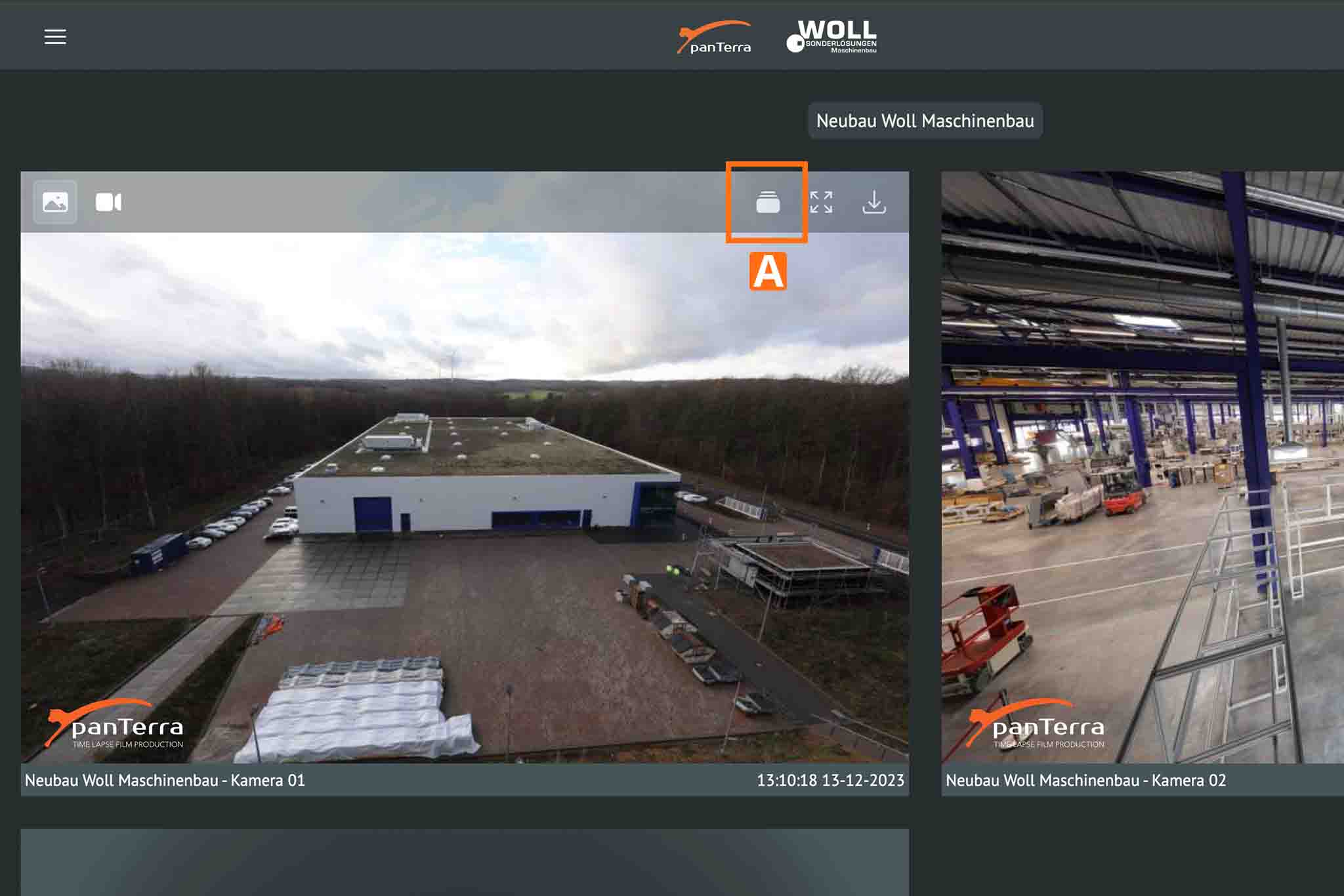
1. Open the stack view for the desired camera (to expand the menu, hover your mouse over the image without clicking) A.
- Tip: You can also open the stack view by double-clicking the camera tile.
2. Navigate to the image you want to tag. Select the desired tag (currently available: “NICE PICTURE & IMPORTANT”) B.

- Note: The panTerra team also awards the “panTerra STAFF PICK 🏅.” When we come across particularly striking images in the course of our work, we tag them, and you'll find them among your own tags.
Searching and Filtering Tags
1. To quickly find your tagged images, open the Tag Filter A.
2. Select one, several, or all of the tags you want to display B.
2. Select one, several, or all of the tags you want to display B.

- Note: If you need additional labels, please feel free to contact us.
Here is a short video demonstrating the feature:
Video: Viewing Labels and Tagging
This video shows you how to select an image in the batch view, apply a label, and quickly find your tagged images later using the label filter. You’ll also see how to filter by single or multiple tags to display exactly the images you need for your documentation or download.
This video shows you how to select an image in the batch view, apply a label, and quickly find your tagged images later using the label filter. You’ll also see how to filter by single or multiple tags to display exactly the images you need for your documentation or download.
Support & Contact
If you have any questions, our team will be happy to assist you: [email protected]