


















 DE
DE  CH
CH  AT
AT 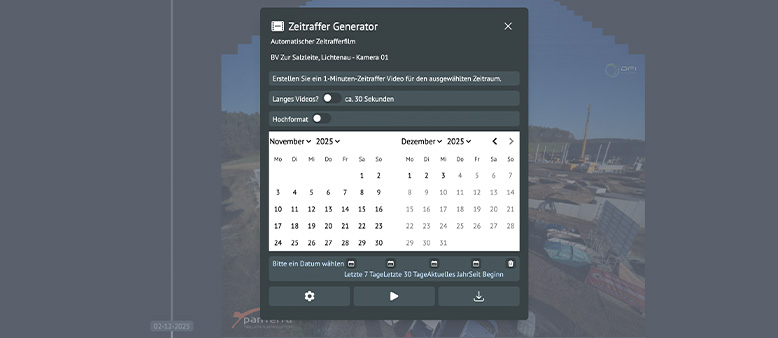
- TIME FACTORY
- Online Portal
panTerra Online Portal – Time-Lapse Generator (Create Time-Lapse Videos)
Time-lapse at the touch of a button: Automatically create impressive time-lapse videos—quickly, effortlessly, and perfect for any project documentation. Choose between daily automatic time-lapses or custom time-lapses using our time-lapse generator.
-
Note: This feature is not included in every service package and may need to be added separately. If you’d like to test the feature or add it to your plan, please feel free to contact us.
You can request creative and simple time-lapse videos with music and logo overlays from our film production team directly through your online portal. To do so, select “Request Time-Lapse Video” in the dashboard.
Table of Contents
TIMELAPSE GENERATOR (custom timelapses)
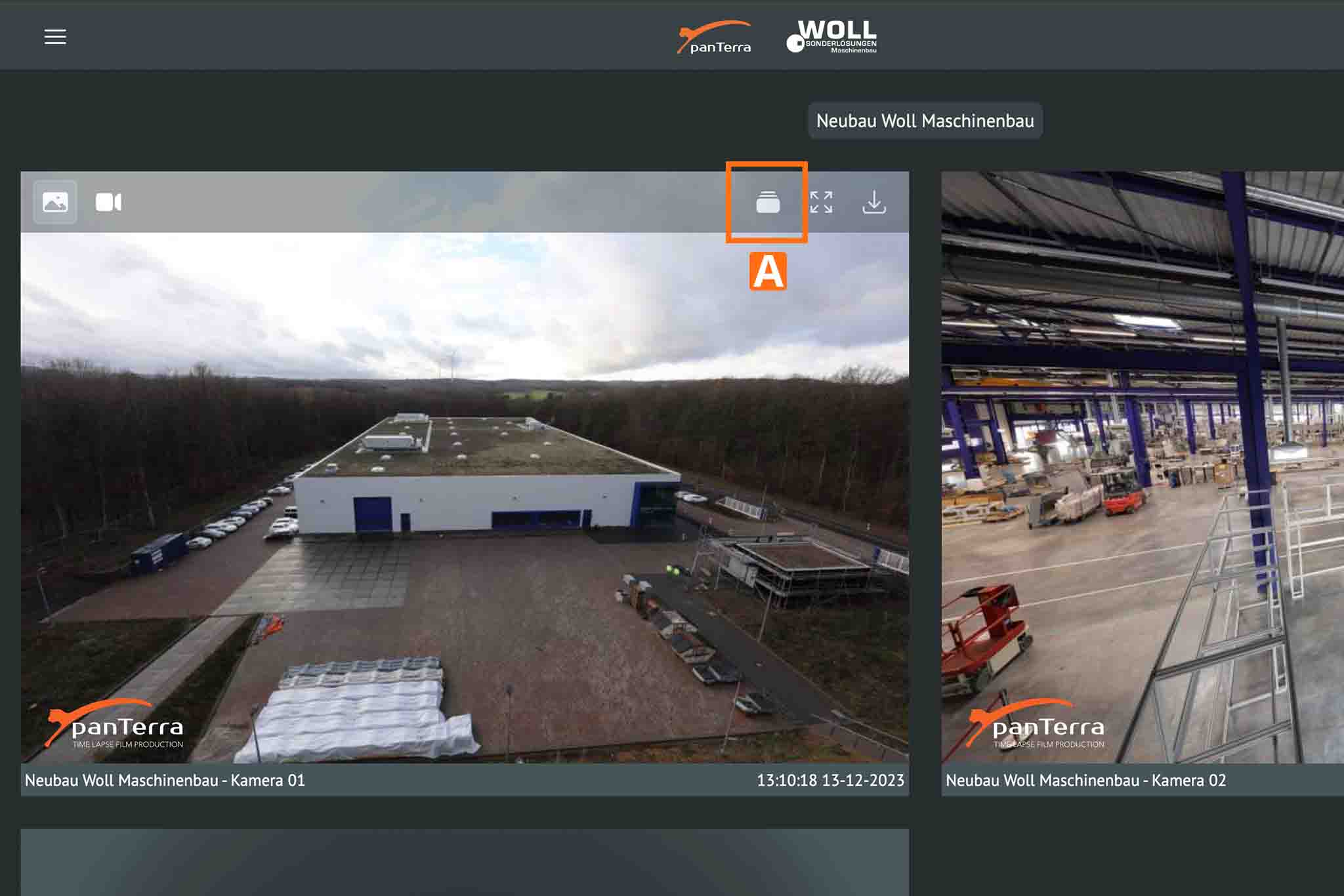
(To expand the menu, hover your mouse over the image without clicking) A.
- Tip: You can also open the stack view by double-clicking the camera tile.

3. Decide whether you want to create a short video (about 30 seconds) or a longer version (about 1 minute) C.
4. If you need the video in portrait orientation, select “Portrait” and choose the desired section D.
5. Select the desired time period down to the exact day E.
6. Or use our presets “Last 7 / 30 Days, Current Year, or Since the Beginning” F.
- Tip: The more precisely you select the time period—ideally starting on the day of the desired activity—the better the quality and excitement of the time-lapse will be.
8. Use the preview to check the generated time-lapse H.
9. Download the time-lapse to your computer or phone I.

- Note: Depending on server load and the number of requests, there may be a short wait. Please wait until the process is complete.
DAILY AUTOMATIC TIME-LAPSE VIDEOS (accessible via the online portal)
- Tip: You can also open the stack view by double-clicking the camera tile.

Daily automatic time-lapse videos are perfect for capturing the beauty of sunrises and sunsets. Each one covers the entire day, including the hours of darkness.
- Note: Both the daily and custom time-lapse features require a certain number of images to be captured first. As a result, these features are typically not fully available until the project has been running for approximately 48 hours.
Here is a short video demonstrating the feature:
This video shows you how to open the Time-Lapse Generator, select the desired time period, and choose between a short or long version. You’ll also see how to select portrait orientation if needed, set the appropriate frame, start the generation process, review the preview, and download the finished time-lapse directly.
Support & Contact
If you have any questions, our team will be happy to assist you: [email protected]